
Introduction
Digital security used to feel like an IT department problem. But today, everyone carries a miniature data center in their pocket, and criminals don’t need to pick your lock when they can simply guess your password, intercept your text message, or dig through the breadcrumbs you’ve left across the internet.
Over the last few years, I’ve watched friends, family, and coworkers stumble into avoidable security pitfalls. To be clear, they’re not being careless. Modern threats are subtle, fast, and increasingly automated. The good news? You don’t need to be a cybersecurity engineer to stay safe. A few foundational habits can harden your digital life more than any expensive security product.
Below, I break down some essential practices that form the backbone of a personal security strategy. Think of these as the everyday rituals that keep your digital fortress standing.
1. Master Multi-Factor Authentication (MFA/2FA)
Protecting your private data with a password is a great start. But, it means that there is a single point of failure in your security. A single leak, guess, or reused password can hand an attacker the keys to your most important accounts. To solve that, take advantage of multi-factor (or two-factor) authentication whenever possible.
What MFA Actually Does
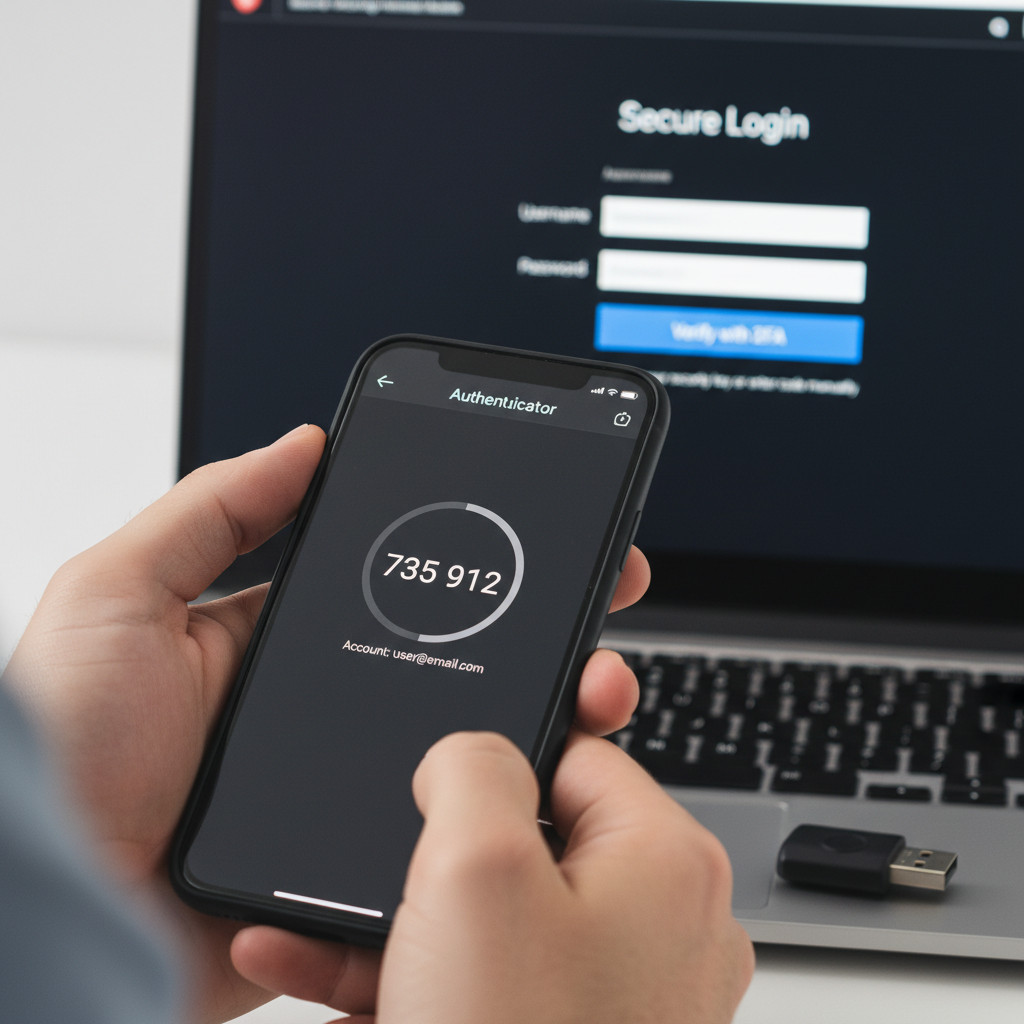
Instead of relying on a single point of failure (your password), MFA adds a second lock — usually a code, hardware token, or app-generated confirmation. It’s the digital equivalent of having a deadbolt and a PIN code. By requiring a second piece of “proof” that somebody is authorized to have access, your data becomes more secure. Plus, the MFA often uses an alternative method of verification (e.g. texting you a one-time use code instead of another password that you’ve memorized).
Why It Matters
If someone steals your password through a breach, phishing email, or sheer luck, they still can’t get in without the second factor. For key accounts like email, banking, or cloud storage MFA is non‑negotiable.
The Key Tools
Before we go further, let’s identify some of the key tools:
- Authenticator App – An authenticator app (like Authy or Google Authenticator) is a small app on your phone that is paired with your various accounts. Each account generates a unique 6‑digit code every 30 seconds. The code never travels by text message, which means it can’t be intercepted the same way SMS can. Think of it as a tiny code‑generator that only you control.
- Hardware Key – A hardware key (YubiKey, Titan Key) is a physical USB or NFC device. When a website wants to verify you, you tap the key. Because it never shares your actual login info and has to be physically with you, it’s one of the hardest methods for attackers to bypass.
Now you’re ready to choose the method that fits your comfort level.
How to Do It
- Enable MFA anywhere it’s offered, especially on financial and personal accounts.
- Use an authenticator app or hardware key instead of SMS when possible.
- Store your recovery codes somewhere offline.
Why Not SMS?
SMS codes are better than no MFA at all — but they come with weak points. Text messages can be intercepted through SIM‑swap attacks, leaked by your phone carrier, or redirected if someone convinces support to move your number to a new SIM. It’s not common, but when it happens, an attacker can receive every code meant for you.
Use SMS only when no better option exists. Authenticator apps and hardware keys avoid these weaknesses entirely.
2. The Power of Strong, Unique Passwords
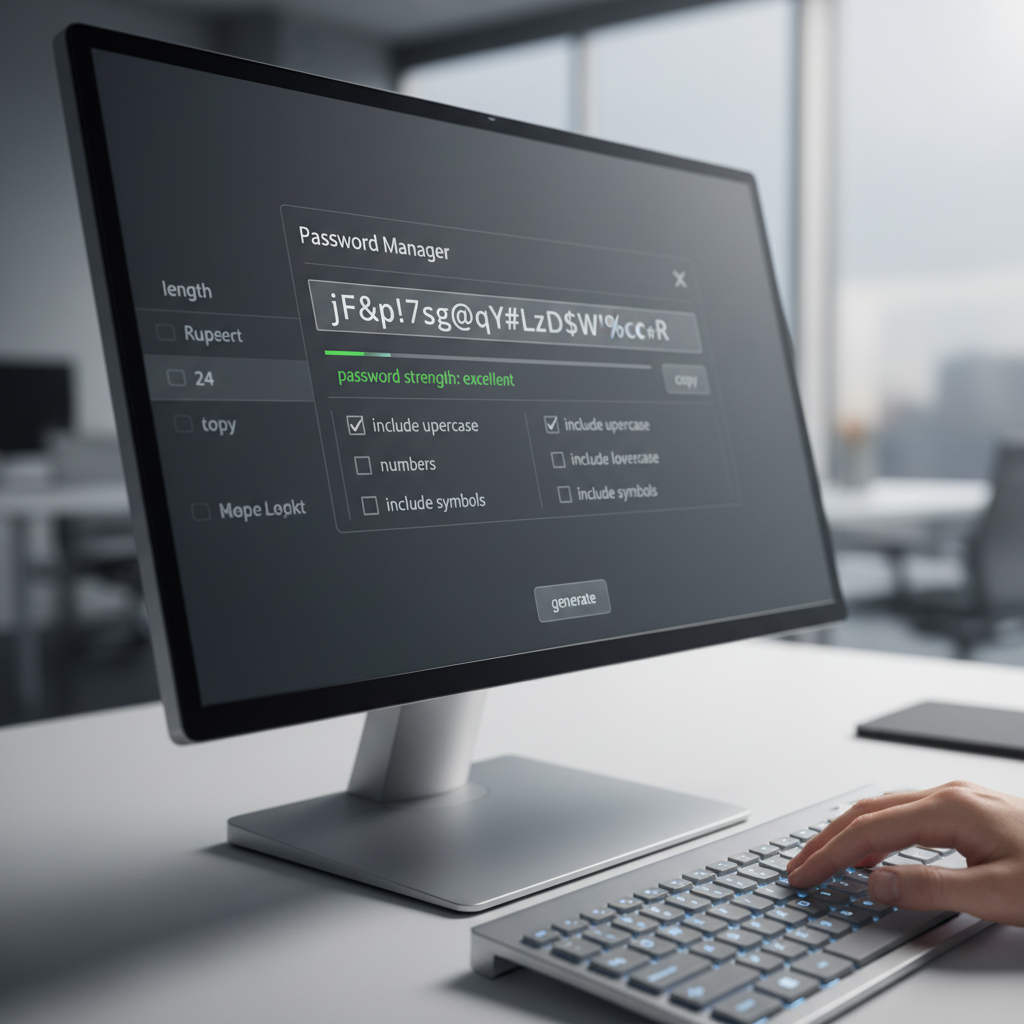
Weak passwords are the security equivalent of leaving your keys under a flower pot — convenient, but only if you ignore the part where everyone else knows that trick too.
Why Unique Passwords Are Essential
One breach can spill every password you reused. Attackers test leaked credentials across dozens of services automatically — a technique called credential stuffing.
How to Build Better Password Habits
What a Password Manager Actually Is
A password manager is a secure vault that stores all your logins for you. You remember one strong master password, and the app autofills the rest. It’s like having a locked safe that hands you the right key only when you need it — and throws away the key after.
Most importantly, it creates extremely long, random passwords you’d never come up with on your own, and remembers them so you don’t have to.
- Use a password manager (1Password, Bitwarden, Dashlane) to generate long, random passwords.
- Avoid reusing passwords — even for “unimportant” accounts.
- Use passphrases (“purple-wizard-lifts-tractor”) when creating a password yourself.
Is My Password Strong Enough?
Here’s the uncomfortable truth: computers are very good at guessing passwords. What feels clever to a human is often laughably simple to a modern cracking tool.
For example, a password like “P@ssW0rd!” looks strong at a glance. It uses symbols, numbers, and mixed case. Unfortunately, it’s breathtakingly simple for a computer to crack a password like this. Automated tools already know every common substitution, so replacing an “a” with “@” or an “o” with “0” doesn’t slow them down at all. On modern hardware, that password can be cracked in seconds.
The same goes for things like:
- Summer2024!
- Password123
- Welcome!@#
These aren’t puzzles to a computer. They’re not even speed bumps.
What Actually Makes a Password Strong
Strength comes from length and randomness, not clever spelling.
- Long beats complex: A 16‑character password is dramatically harder to crack than an 8‑character one, even if the shorter password uses symbols.
- Random beats meaningful: Words, names, and patterns are easier to guess than truly random strings.
- Unique beats everything: A strong password reused across sites becomes weak the moment one site is breached.
That’s why password managers matter so much. They generate passwords that look like nonsense — long strings of random characters — because nonsense is exactly what computers struggle with.
If you’re creating a password yourself, use a passphrase instead of a single word. Something like “correct-horse-battery-staple” isn’t clever or poetic, but its length makes it exponentially harder to crack.
The simplest rule to remember is this: if you can easily remember a password you didn’t create with a manager, it’s probably not strong enough on its own.
I highly suggest testing some of your passwords on a trusted Password Strength Checker like this one from NordPass.
3. Software Updates — Your Invisible Bodyguards
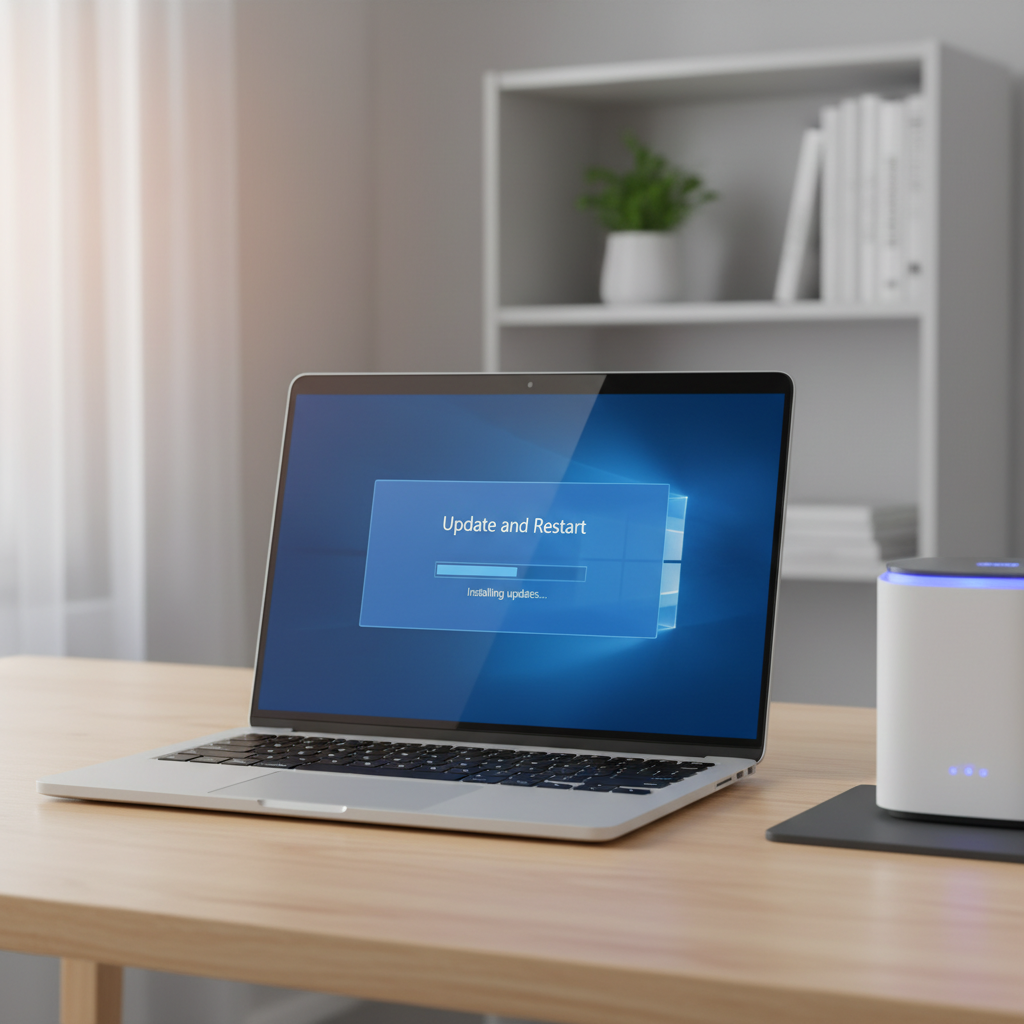
Most updates aren’t glamorous. They rarely add flashy features and often show up at the worst possible moment (like when you’re mid‑presentation or sitting on 2% battery). But behind the annoyance is the single most effective security patch you’ll ever enable.
Why Updates Matter
Software vulnerabilities are constantly being discovered, and attackers move quickly to exploit them. When you postpone an update, you’re leaving a window open for someone who’s already climbed the fence.
Best Practices
- Turn on automatic updates for operating systems, browsers, and apps. Don’t forget to backup your data regularly!
- Restart your devices regularly — some patches don’t activate until you do.
- Update your router firmware at least twice a year.
4. Passkeys — The Future Without Passwords
Passkeys are the closest thing we have to a frictionless, secure future — a world where passwords (and all the ways they fail us) quietly fade into history.
What Passkeys Are
Passkeys are a way to sign in without ever creating or typing a password.
Instead of a password that you remember (and attackers can steal), a passkey uses two matching digital keys:
- One key stays locked inside your device (your phone, computer, or hardware key).
- The other key lives with the website or app.
When you sign in, those two keys quietly confirm they match. You unlock your key with something you already use every day — Face ID, Touch ID, a fingerprint, a PIN, or a security key. Nothing secret is typed, sent, or shared.
Think of it like this: your device holds a unique key cut specifically for one lock, and the lock refuses to open for anything else.
Why Passkeys Matter
Passkeys eliminate entire categories of attacks:
- No password to steal in a breach.
- No phishing, because a passkey won’t work on the wrong website.
- No reuse, because each passkey is unique.
In practice, they feel like unlocking your phone — quick, invisible, and far safer than the maze of logins we juggle today.
How to Start Using Them
- Turn on passkeys for services that support them (Google, Apple, Microsoft, 1Password, PayPal, and many more).
- Sync passkeys through your device’s cloud account (iCloud Keychain, Google Password Manager, etc.).
- Keep a hardware key (YubiKey, Titan Key) as a backup if you want extra resilience.
5. Know Your Data Footprint
Most people don’t realize how much of their life is publicly accessible online — and how much of it can be stitched together with even basic tools.
Why It Matters
Attackers often build convincing scam messages using public info. An old LinkedIn bio, a forgotten forum post, or your city’s property records can all become puzzle pieces. For more, read our article on some of the most common scams.
How to Reduce Your Digital Shadow
- Remove outdated social media posts or set your profiles to private.
- Delete accounts you no longer use.
- Limit what you share — no birthdays, travel plans, or personal identifiers.
- Check for old breaches using Have I Been Pwned.
Final Thoughts
Security isn’t a single product — it’s a set of habits. None of these steps take more than a few minutes to set up, yet together they create a hardened digital perimeter that dramatically reduces your risk.
Think of this guide as the baseline: a foundation sturdy enough for everyday use, and flexible enough to grow with you as your digital life expands.
When it comes to protecting your data, you don’t need perfection. You just need to stay one step ahead of the easiest targets. And with these habits, you will.